WordPress critical error appears when website fails loading core functionality. Message usually displays after plugin update theme change PHP version update or server configuration issue. WordPress introduced this message to protect users from raw PHP fatal error exposure.
Website visitors see blank page or warning message while admin panel access often becomes unavailable. Site downtime affects traffic rankings user trust and conversions. Understanding cause remains first step toward proper fix.
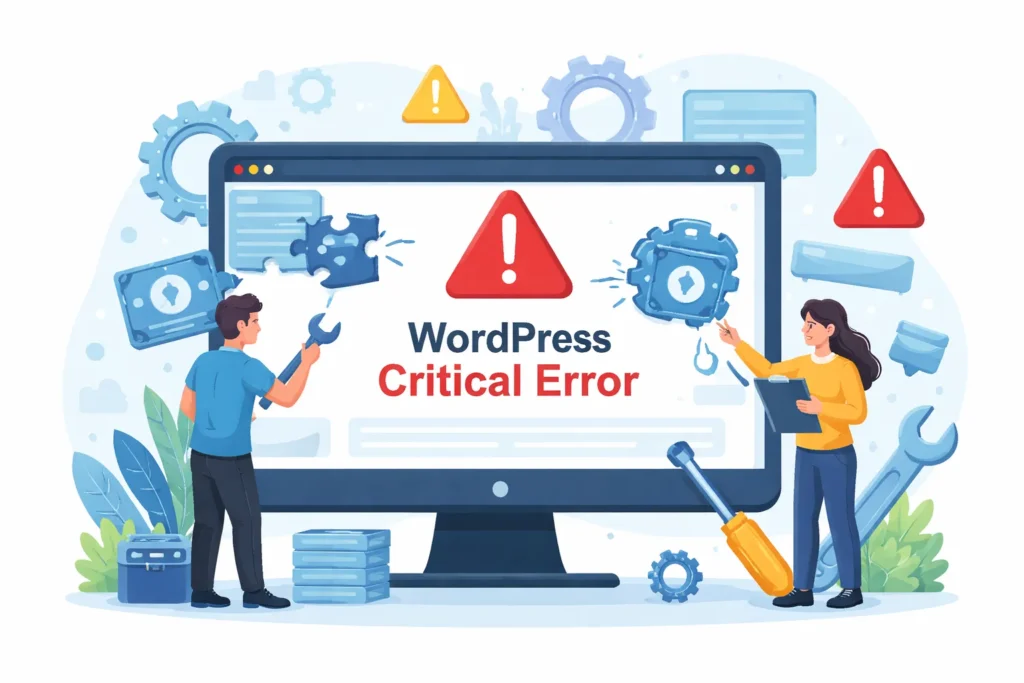
Common Reasons Behind WordPress Critical Error
- Most WordPress critical errors originate from compatibility or resource problems.
- Plugin conflict remains most frequent cause. Newly installed or updated plugin may conflict with WordPress core or other plugins.
- Theme incompatibility also triggers fatal issues. Poorly coded themes or outdated theme files break site structure.
- PHP version mismatch creates errors when hosting PHP version does not support active plugins or themes.
- Memory exhaustion happens when WordPress exceeds allocated server memory.
- Corrupted core files appear after incomplete updates or file permission problems.
- Server misconfiguration hosting level restrictions missing PHP extensions or file ownership problems also lead to critical error.
Enable Debug Mode To Identify Real Issue
- Debug mode helps locate exact error source.
- Access site files through FTP or hosting file manager. Locate WordPress root directory. Open wp config file.
- Add debug constants inside file.
- Enable debug logging and error display. Reload site page.
- Debug output reveals PHP fatal error plugin name or theme file causing issue. Error log file stores detailed trace helpful for troubleshooting.
- Disable debug after fixing issue to protect security.
Fix WordPress Critical Error Caused By Plugins
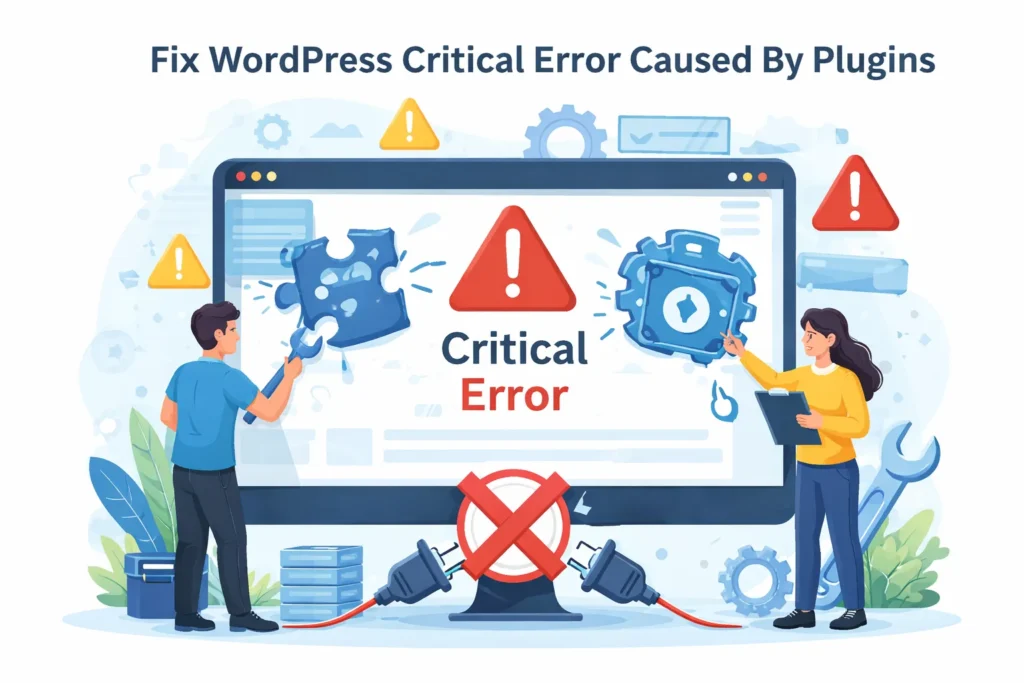
- Plugin conflict resolution remains fastest fix.
- Access plugins directory using FTP or file manager. Rename plugins folder to deactivate all plugins instantly.
- Reload website. If site loads normally plugin conflict confirmed.
- Rename folder back to original name. Enter plugins directory.
- Activate plugins one by one until error reappears. Last activated plugin becomes root cause.
- Remove problematic plugin or replace with compatible alternative.
Many of these issues can be avoided with professional WordPress development for business, where performance, compatibility, and long term stability are built from the start.
Resolve Theme Related Critical Error
- Theme errors occur after theme update or installation.
- Access themes directory through file manager.
- Rename active theme folder. WordPress automatically switches to default theme.
- Reload website.
- If website works correctly original theme contains faulty code.
- Reinstall fresh theme version or contact theme developer.
- Avoid using outdated or nulled themes due to security risks.
Fix PHP Version Compatibility Problems
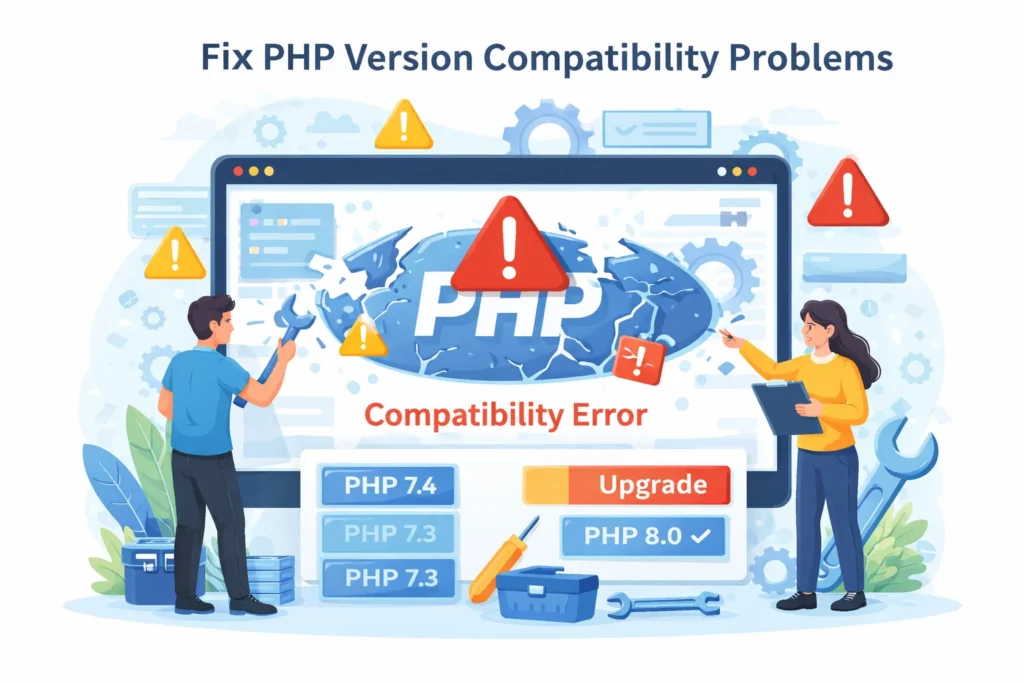
- PHP version mismatch causes many WordPress fatal errors.
- Check current PHP version through hosting panel.
- WordPress performs best on supported PHP versions recommended by hosting provider.
- Switch PHP version temporarily and test site loading.
- If site works downgrade or upgrade PHP permanently based on plugin compatibility.
- Always test changes on staging environment when possible.
Increase WordPress Memory Limit
- Memory exhaustion generates critical error message.
- Open wp config file.
- Add memory limit definition to increase available resources.
- Reload website.
- If issue resolves hosting memory limit remains too low.
- Contact hosting support for permanent increase when needed.
Repair Corrupted WordPress Core Files
- Core file corruption breaks site loading.
- Download fresh WordPress copy from official source.
- Extract files locally.
- Upload admin and includes folders only.
- Replace existing folders on server.
- Keep content folder untouched to preserve themes uploads and plugins.
- Reload website to verify fix.
Fix WordPress Critical Error Without Admin Access
- Many users lose dashboard access during critical error.
- FTP or hosting file manager remains reliable solution.
- Use file access to disable plugins switch themes enable debug and repair files.
- Database access rarely required unless error originates from corrupted options table.
- Backup files before making changes to avoid data loss.
Prevent WordPress Critical Errors In Future
- Regular maintenance prevents recurring errors.
- Update plugins themes and WordPress core consistently.
- Use trusted plugins from reputable developers.
- Avoid excessive plugins to reduce conflict risk.
- Perform backups before updates.
- Monitor error logs regularly.
- Use quality hosting with proper PHP support.
- Test changes on staging environment instead of live site.
When Hosting Support Or Expert Help Becomes Necessary
- Server level problems require hosting intervention.
- Repeated PHP fatal errors unclear logs or persistent downtime justify expert assistance.
- Professional support saves time prevents data loss and restores site faster.
Final Thoughts
WordPress critical error remains common yet fixable issue. Most cases resolve through plugin deactivation theme switching PHP adjustment or memory increase. Calm systematic troubleshooting restores site functionality quickly. Proper maintenance reduces future risk and improves website stability.
Frequently Asked Questions
How to fix the critical error in WordPress?
Enable debug mode identify faulty plugin or theme disable it fix PHP version memory limit or replace corrupted core files.
How to fix a critical error on this website?
Access site via FTP disable plugins switch theme enable debug logs and resolve PHP or server related issues.
What does it mean when a website has a critical error?
Website cannot load due to plugin theme PHP or server failure blocking WordPress core execution.
How to fix an error in WordPress?
Check error logs enable debug mode deactivate plugins repair files update PHP version and restore backups.